> For the complete documentation index, see [llms.txt](https://docs.bluefletch.com/bluefletch-enterprise/llms.txt). Markdown versions of documentation pages are available by appending `.md` to page URLs; this page is available as [Markdown](https://docs.bluefletch.com/bluefletch-enterprise/product-guides/authentication-and-sso/features/offline-authentication.md).
# Offline Authentication
{% hint style="success" %}
Offline Authentication Feature was introduced in Auth version 4.15.10.
{% endhint %}
## Overview
This feature introduces a configurable offline mode for the authentication flow. The new solution allows users to proactively choose to enter a limited offline state when the device is deemed offline. In this mode, users can enter a user ID for tracking purposes and are granted a predefined offline session, providing access to a specific set of applications configured for offline use. The system also monitors network connectivity in the background and notifies the user when it is restored.
## User Guide
### Prerequisites
To use offline mode, the following must be true:
1. **Configuration:** Your system administrator must have pre-configured and enabled the offline mode feature in the application settings (`bfAuth.offline.enableOfflineMode = true`).
2. **Offline Applications:** Applications must be pre-configured in the Launcher under the designated "Offline" group.
### **Offline Authentication Process**
The offline authentication process follows a strict sequence when the device cannot reach the predefined server urls (`networkCheckUrls`).
{% stepper %}
{% step %}
#### **Step 1**
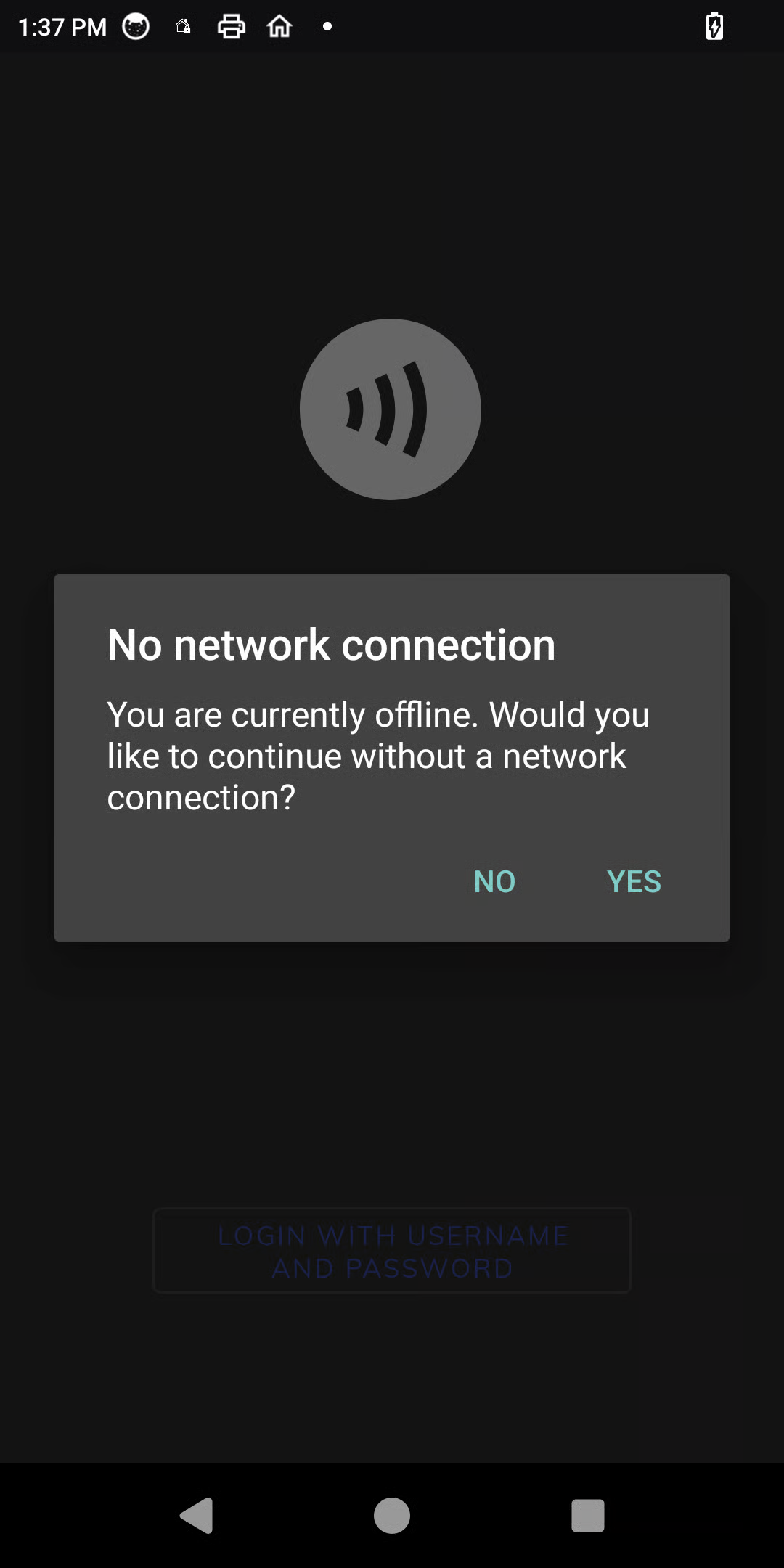
When you attempt to log in, the system first performs an automatic check against the predefined server urls. **If the server URLs can't be reached**, the system will fail first and present a dialog box stating: *"Network not available. Unable to login because servers are unreachable. Proceed to offline mode?"* At this point, you must choose to either **No** to abort the login attempt or select **Yes** to proceed.
No network connection prompt
{% endstep %}
{% step %}
#### **Step 2**
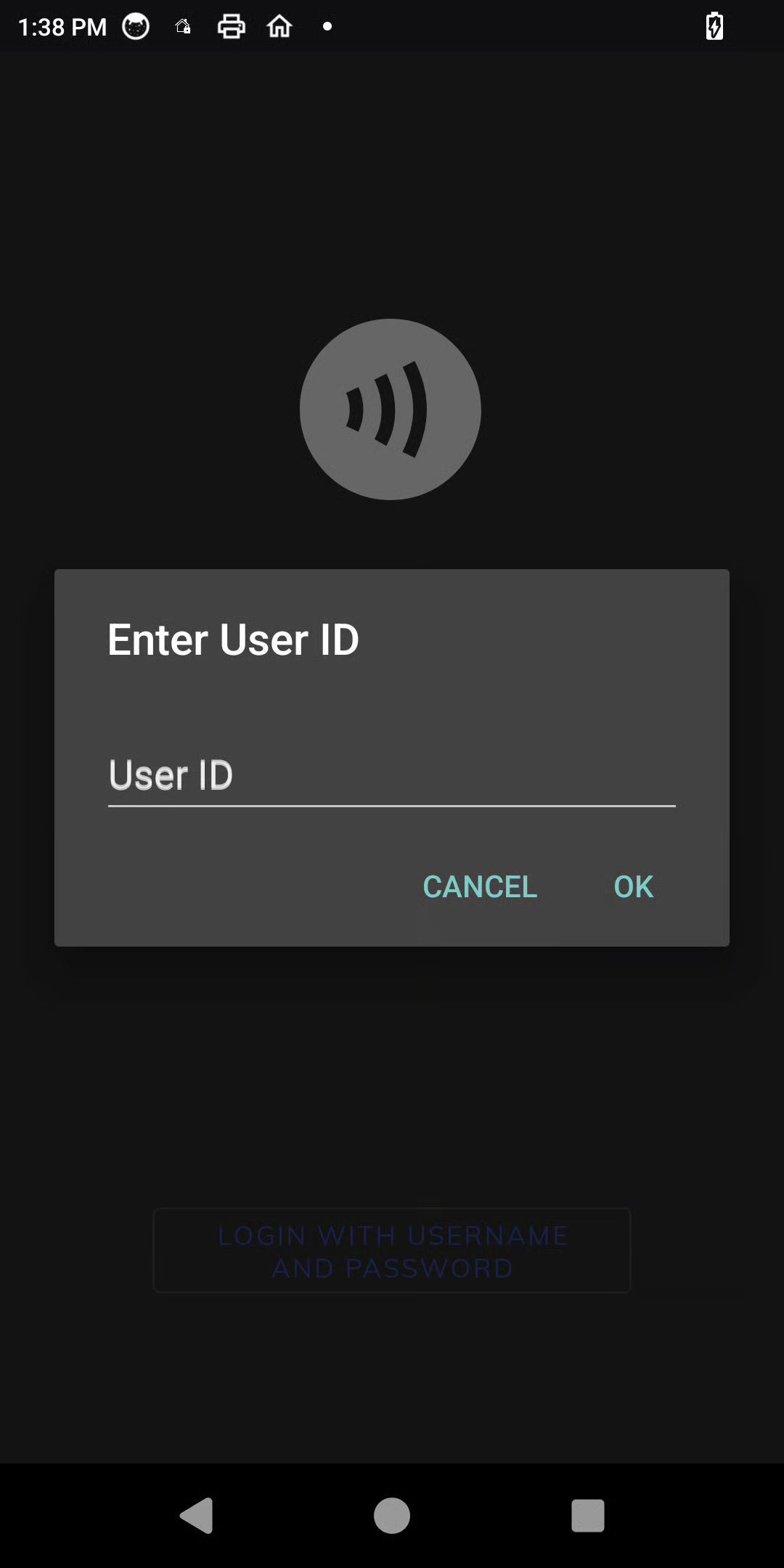
If you proceed, a new prompt will appear asking you to **Enter User ID**. You should enter an identifier for tracking purposes; this step is for auditing and is not validated against any network service. After entering a user ID, you finalize the request by selecting **Ok**.
Enter User Id prompt
{% endstep %}
{% step %}
### Step 3
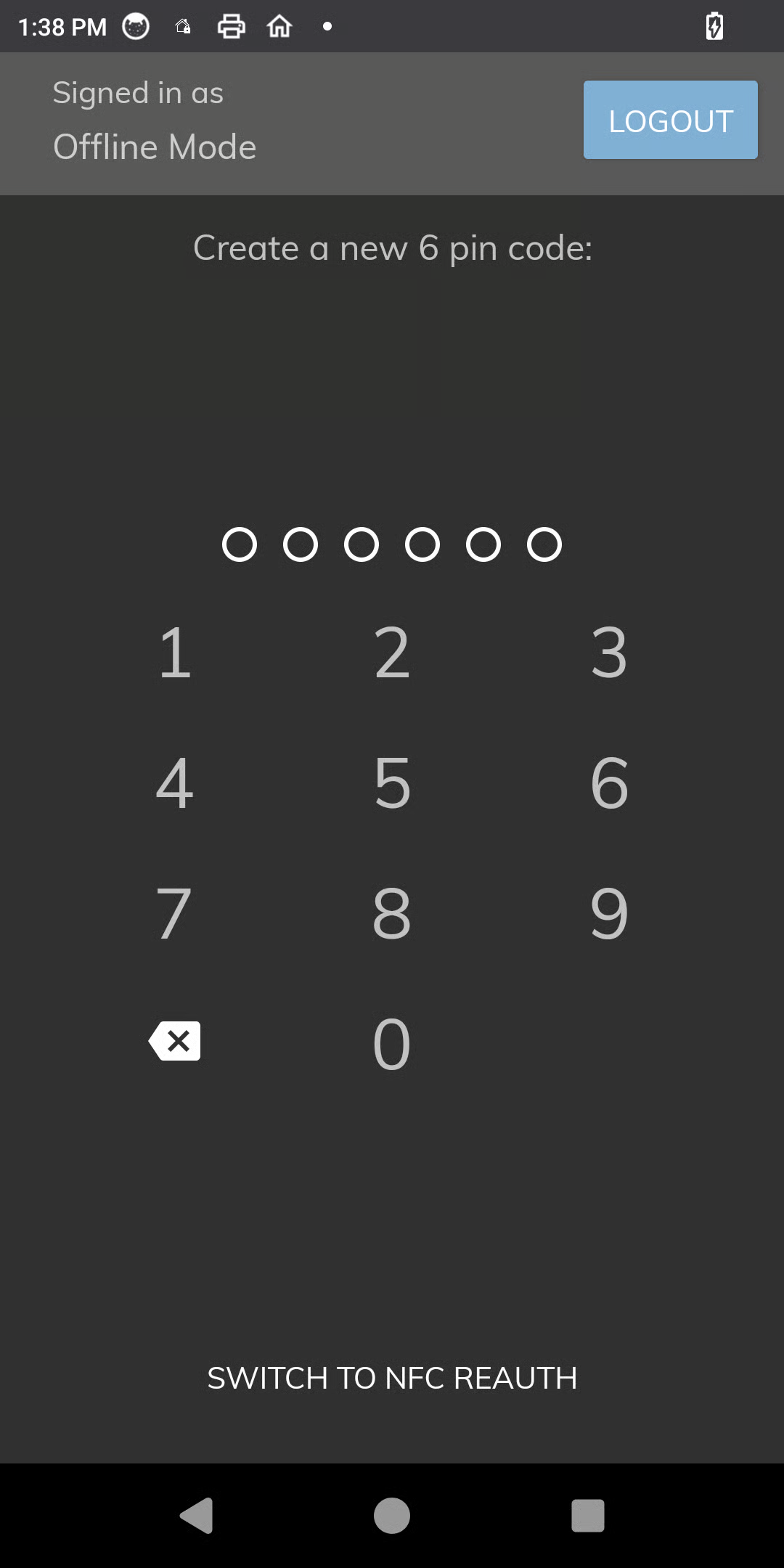
Upon submission, the system grants a local offline session with a predefined user name and group membership as configured by an administrator. If secondary authentication like a PIN or NFC is enabled, you will be prompted to complete that step next. Once successfully authenticated, you will have access to the Launcher's Offline group of applications.
Secondary Authentication prompt
{% endstep %}
{% step %}
### Final Step
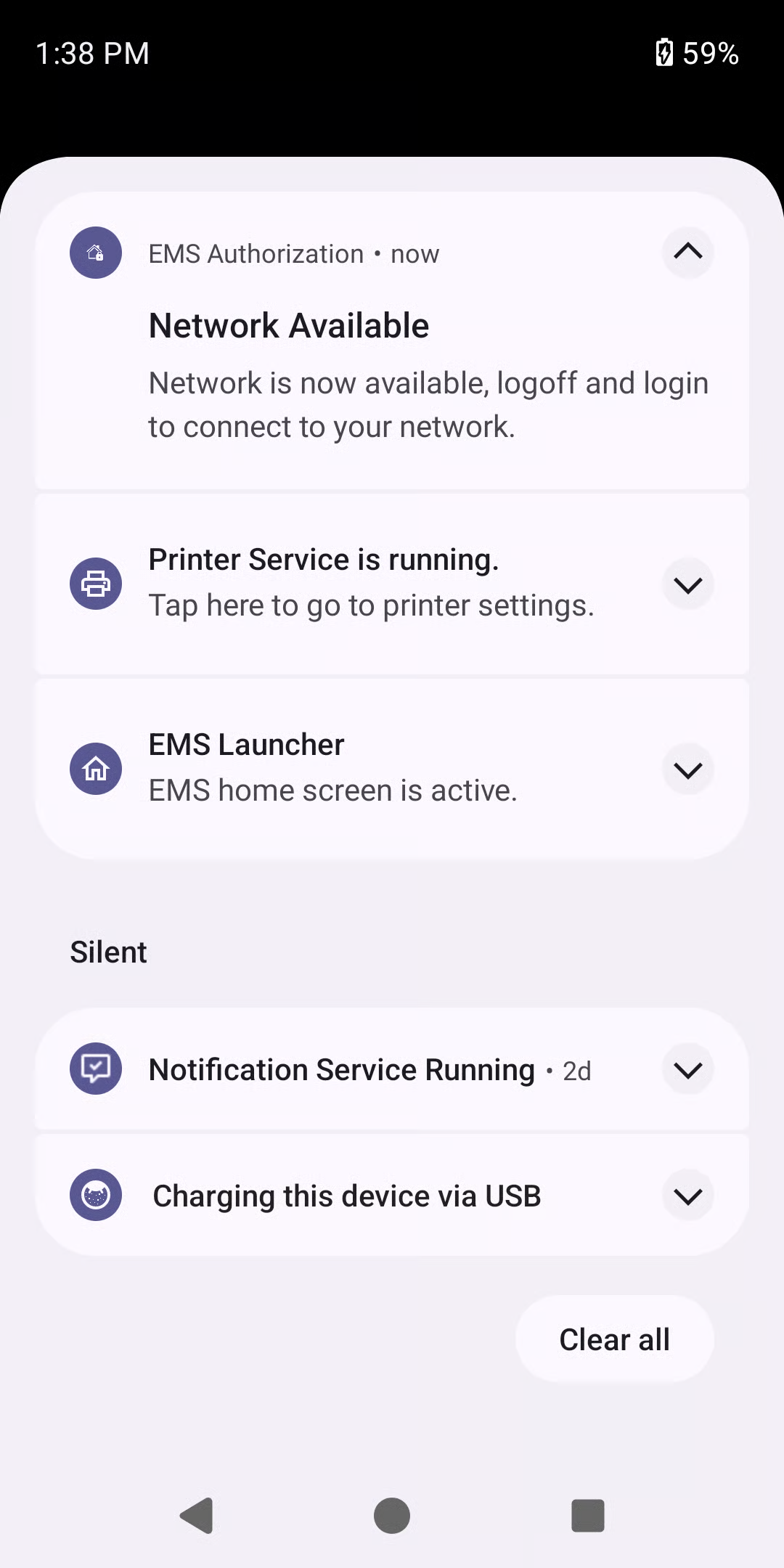
Finally, the system begins monitoring for network connectivity in the background. When the network is restored, you will receive an Android notification stating: *"Network is now available, logoff and login to connect to your network."* To access online features and resources, you must manually log out from the offline session and perform a standard online login.
Network availability notification
{% endstep %}
{% endstepper %}
### Setting Up Offline Mode
```json
"appConfig" : {
"bfAuth": {
"offline": {
"networkCheckUrls": [
"https://bluefletch.okta.com/.well-known/openid-configuration",
"https://accounts.google.com/.well-known/openid-configuration"
],
"enableOfflineMode": false,
"group": "Offline",
"userIdValidationPattern": "^[a-zA-Z0-9_]{6,}$"
}
}
}
```
### Settings for Offline Mode
| networkCheckUrls | string\[] | List of URLs for offline mode functionality to validate connectivity (if one fails, it is automatically marked as offline). |
| ----------------------- | --------- | --------------------------------------------------------------------------------------------------------------------------- |
| enableOfflineMode | boolean | To enable/disable offline mode functionality. |
| userName | string | Default Username in Session if offline mode proceeded. |
| group | string | Default Group in Session if offline mode proceeded. |
| userIdValidationPattern | string | A regular expression string pattern for validating the user id input. |
---
# Agent Instructions
This documentation is published with GitBook. GitBook is the documentation platform designed so that both humans and AI agents can read, navigate, and reason over technical content effectively. Learn more at gitbook.com.
## Querying This Documentation
If you need additional information that is not directly available in this page, you can query the documentation by asking a question.
Perform an HTTP GET request on the following URL with the `ask` and `goal` query parameters:
```
GET https://docs.bluefletch.com/bluefletch-enterprise/product-guides/authentication-and-sso/features/offline-authentication.md?ask=&goal=
```
`ask` is the immediate question: it should be specific, self-contained, and written in natural language.
`goal` is what the user is ultimately trying to achieve, the reason they need the answer. Sharing it helps GitBook give you a better, more relevant answer. A goal is most helpful when it describes the outcome the user wants rather than restating the question. For example, with `ask=how do I create an API token`, a goal like `automate deployments from our CI pipeline` lets GitBook tailor the answer to that use case.
The response will contain a direct answer to the question and relevant excerpts and sources from the documentation.
Use this mechanism when the answer is not explicitly present in the current page, you need clarification or additional context, or you want to retrieve related documentation sections.